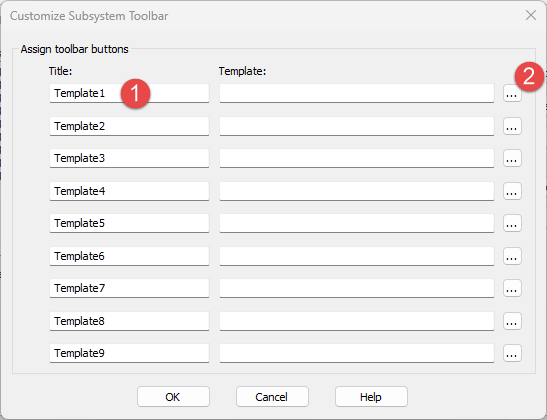
You can create up to 9 buttons to automatically select subsystem templates. These appear as images in a gallery.
You must first have created the subsystem templates. See Creating a New Subsystem Template for information.
To customize the gallery, do the following:
-
From the Insert tab, click Sub-System.
-
In the Insert Subsystem dialog, click Customize.
-
For each template you want to make available in the gallery, edit the Title, and then click the Browse button to select the template you want to associate with that title.
-
When you are finished, click OK.
-
Click Close to close the Insert Subsystem dialog.
-
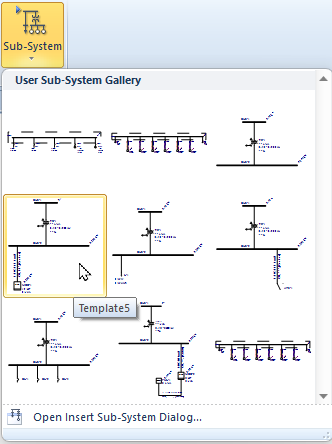
After the steps above have been completed, you can see the substation templates from the gallery and select them by clicking the arrow that is displayed below the Sub-System button. To see the name of the template, hover over the image.
Note: The arrow only appears if you have created the substation gallery.